AI chatbots have answered questions for years, but GPT-6.1 Terra computer use moves the work onto your actual screen. OpenAI released GPT-6.1 Terra on October 26, 2026, as a fast model that can read software interfaces and, with the right tools, click, type and move through menus for you. This explainer cuts through the hype to show what it can handle, where it breaks down and when a different approach makes more sense.
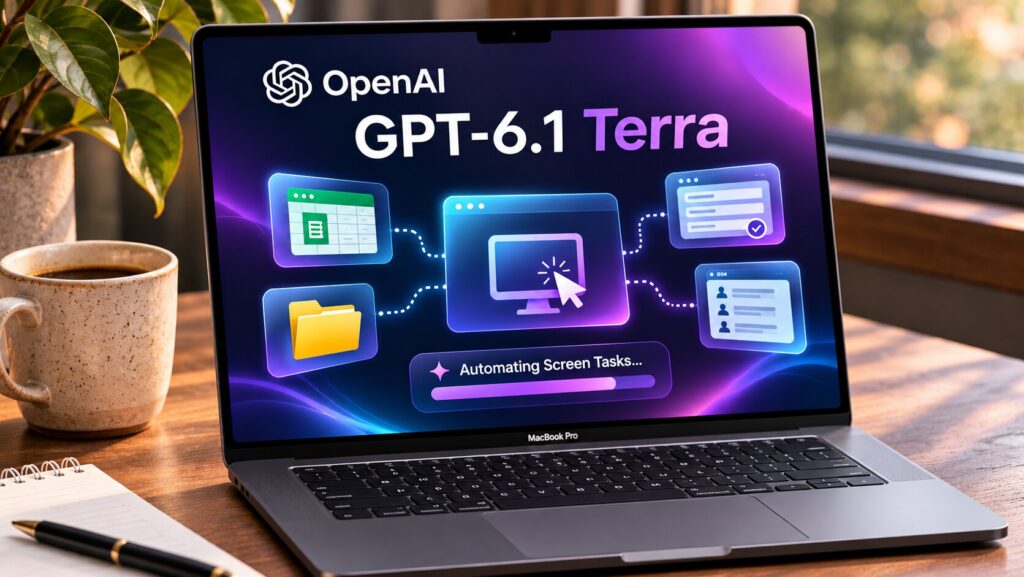
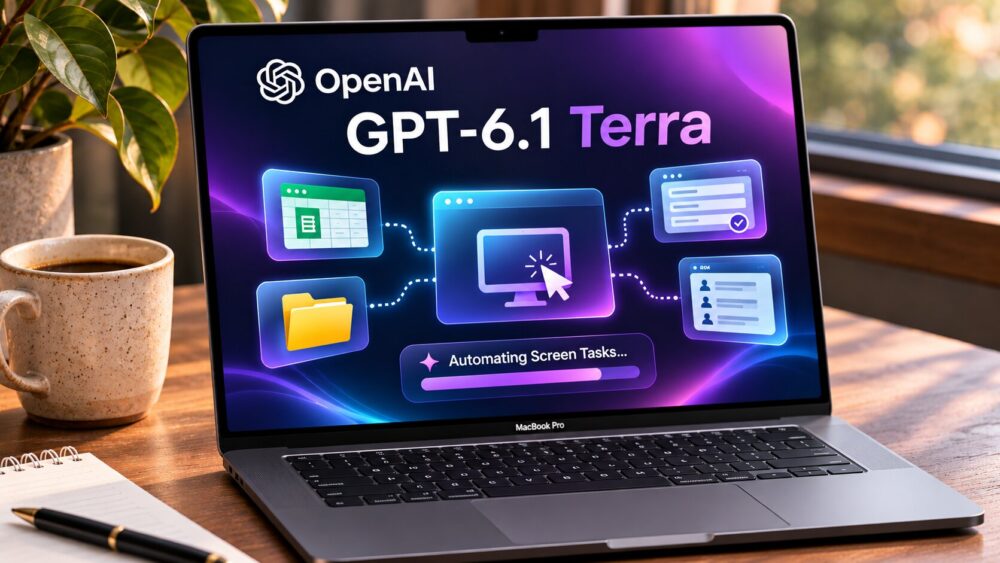
Laptop displaying OpenAI GPT-6.1 Terra screen task automation with connected spreadsheets, folders, forms, and CRM tools.
What is GPT-6.1 Terra computer use?
GPT-6.1 Terra computer use means the model works inside software instead of only replying in chat. Connected to supported computer-use tools in ChatGPT Work or Codex, Terra can interpret what appears on screen, navigate menus, enter text and operate app controls, helping complete routine digital tasks that you then review and approve.
How computer use differs from a normal chatbot
Ask a regular chatbot how to rename 200 invoices and you get instructions. With computer use, the model can help do the renaming. That is the practical shift: the AI moves from describing steps to performing them inside the programs you already use.
Terra is part of OpenAI’s GPT-6 series and is built for visual reasoning, writing and computer use. According to OpenAI’s GPT-6.1 Terra announcement, it completed tasks more than three times faster than GPT-6 Astra and GPT-6.1 Sol on OpenAI’s computer-use evaluations. Keep in mind those figures come from OpenAI’s own testing, and your results will vary with the software and the task.
Where it runs
Terra is offered in supported ChatGPT Work and Codex environments and through the OpenAI API. It is not part of the standard Chat experience. Desktop app access on Windows or macOS is what lets it reach local files and applications; web and mobile versions of Work cannot do that part.
What can GPT-6.1 Terra do on your screen?
The source article highlights three kinds of jobs where Terra’s speed and visual skills fit well.
| Task | What Terra handles | Where you stay in charge |
|---|---|---|
| CRM data entry | Matches spreadsheet columns to fields in an open customer relationship management (CRM) form and enters each contact | Stop before submitting; review skipped records |
| Invoice organization | Reads PDF invoices, extracts date, vendor and total, renames copies as YYYY-MM-DD_Vendor_Amount.pdf, sorts into monthly folders | Verify amounts and dates before accounting use |
| Repetitive web forms | Copies approved spreadsheet data into supplier, inventory or service-request forms | No guessing on missing data; final submit is yours |
Each of these sits in the sweet spot: predictable steps, clear inputs and results you can check quickly. Teams that already rely on no-code AI tools for marketing will recognize the same pattern of describing outcomes in plain language.
What can’t GPT-6.1 Terra do reliably?
Terra is not dependable for every screen-based process. The source guide names the situations most likely to cause trouble:
- A website or app changes its layout, so buttons and fields move.
- Documents are blurry, incomplete or ambiguous.
- An application asks for additional authentication.
- A task requires sensitive financial or legal decisions.
- Required information sits outside the workspace you allowed.
There is also a difference between finishing a task once and finishing it correctly hundreds of times. That second bar is much higher, which is why testing matters.
When an API or integration beats screen automation
For processes that repeat constantly, a direct integration or API-based automation may be the more dependable option. Computer use earns its place when software lacks a convenient integration and a person would otherwise click through several apps manually. Developers can reach Terra directly through the GPT-6.1 Terra API documentation, where OpenAI lists standard pricing of $1 per million input tokens and $5 per million output tokens, billed separately from ChatGPT subscriptions.
How do you set up GPT-6.1 Terra computer use?
Setup is short. Open the ChatGPT desktop app, choose Work (or Codex for coding), select GPT-6.1 Terra, and grant access only to the folders or apps the task needs. If the model is missing, your plan, workspace or admin settings may not include it.
Then write an instruction that covers four points: the files, the data to pull, the output format and the fallback for unclear items. For invoices, that might mean naming the receipts folder, asking for date, vendor and total, requesting monthly subfolders, and telling Terra to leave any unclear file untouched and flag it. That last rule keeps the model from filling gaps with guesses.
Keeping control while the AI drives
A computer-use model can see and act on whatever its tools reach, so limits matter. Use copies of files in a dedicated folder, protect passwords and customer data, and know that a restricted workspace lowers risk but does not guarantee private details never show up on screen. Codex users can also review its sandbox and approval settings.
The safest habit is an explicit stop rule. The source suggests telling Terra: “Complete the preparation steps, but do not send messages, submit forms, delete original files, or make purchases without my approval.” If privacy is your main concern, our guide to running private AI workloads locally with Ollama covers a very different, offline approach.
Who should try it first?
Small teams buried in admin work stand to gain the most. Our list of AI tools for local businesses covers the broader toolkit; Terra fits the slot for repetitive, screen-heavy tasks. Start with five or ten records before running a batch of 500, fix any recurring mistakes, then scale.
Key takeaways
- GPT-6.1 Terra computer use lets the model read screens, navigate menus, type and operate app controls through supported tools.
- It runs in ChatGPT Work, Codex and the OpenAI API, not standard Chat.
- Best fits: CRM entry, invoice filing and repetitive form filling with clear rules.
- Weak spots: layout changes, poor-quality documents, extra sign-ins, high-stakes decisions and data outside the allowed workspace.
- For constant, high-volume processes, an API or direct integration may be more reliable.
FAQ
Is GPT-6.1 Terra computer use the same as a chatbot?
No. A standard chatbot answers in text, while Terra with computer-use tools can work inside software interfaces, reading the screen, moving through menus and entering information. It still needs clear instructions and human review, especially before anything is submitted, sent, paid for or deleted on your behalf.
Can GPT-6.1 Terra make decisions for me?
It should not make sensitive financial or legal decisions. The source guide lists those among the situations where Terra may struggle. Use it to prepare work such as entering data or organizing files, and keep the final call, plus any payment, email or external submission, with a person who checks the output.
Does GPT-6.1 Terra work when my computer is locked?
That depends on the workflow. Some cloud-based tasks can continue on their own, but tasks interacting with desktop applications may depend on your local session and permissions. Check what your Work or Codex environment supports, and review OpenAI’s Work and Codex help guide for current details.
Is screen automation better than an API integration?
Not always. Screen automation is useful when an app has no convenient integration and a person would otherwise click through it by hand. For recurring processes that run many times a day, a direct integration or API-based setup may be more dependable and easier to maintain over time.